
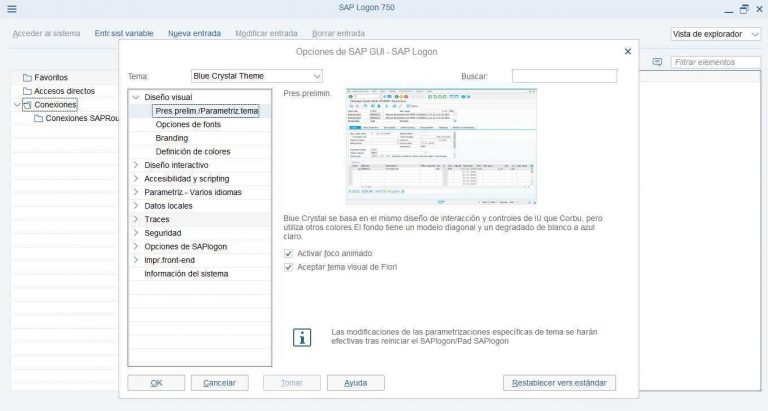
Upon entering SAP Logon, we will see the available SAP systems listed, and there will be an automatic selection with the server having the best response time at a given moment.
The list of systems can also be changed. SAP Logon is available for both SAP GUI for Windows and SAP GUI within the Java environment
Access methods
It is not necessary to log in to SAP to access via the SAP GUI for HTML, as access can be done through a URL.
The mentioned URL already contains a defined target system, the desired application, and any other information that may be necessary. It is made available to users in the form of a link.
How does SAP login work?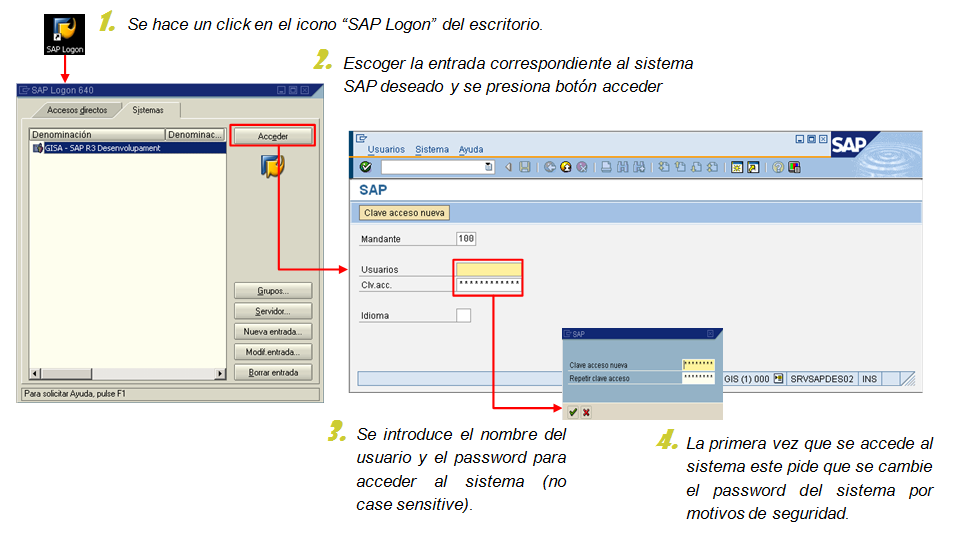
As mentioned above, SAP Logon lists all available systems. At that time, the user selects the desired system by double-clicking the respective icon. SAP Logon will automatically connect to the server that currently has the best response time. Alternatively, the SAP GUI interface can also be called up in the browser.
Many people still believe that SAP Logon is just a shortcut to enter SAP servers quickly.
However, it is well known by those with a little more experience using this program that SAP Logon also has a great variety of useful tools that are useful for optimizing the user's work.
SAP login panel
SAP Logon Pad is part of SAP GUI. It is installed on a PC as an executable file and establishes the connection with the SAP system.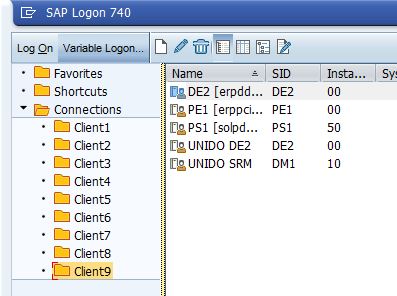
The SAP GUI is relatively simple. The application server also performs simple field checks against fixed values, and the result is reported to the SAP GUI.
On the initial screen, we observe:
On the initial screen, we see options such as client, username/password, and login language. The language already appears by default; if you need to choose it, remember that “ES” is Spanish and “EN” is for English.
If you leave that field blank, don't worry, as the system will assign it according to how the user is configured within SAP.
SAP user menu
If the username and password are entered correctly, entry into the system will be carried out and we will enter the user menu (defined by default), also known as SAP Easy Access.
The SAP Logon, like the SAP system in general, is constantly being updated and with the passage of years.
The latest version of SAP Logon is 7.70, and it continues to evolve to offer more advanced versions in the coming years.
Ready to talk to SAP specialists?
Tell us what your company needs and we'll help you find the best path.
Request information



 English
  Español de México
  Español